ASK ABOUT YOUR SCREEN
Ask AI about your screen on Mac, just by saying “screenshot this”
When a setting, a dialog or an error makes no sense, skip the routine of taking a screenshot, opening a chat window, pasting it and typing out what you see. Press Fn+Space and say “screenshot this, how do I do it?” echo agent captures the window you are using and answers from the image.
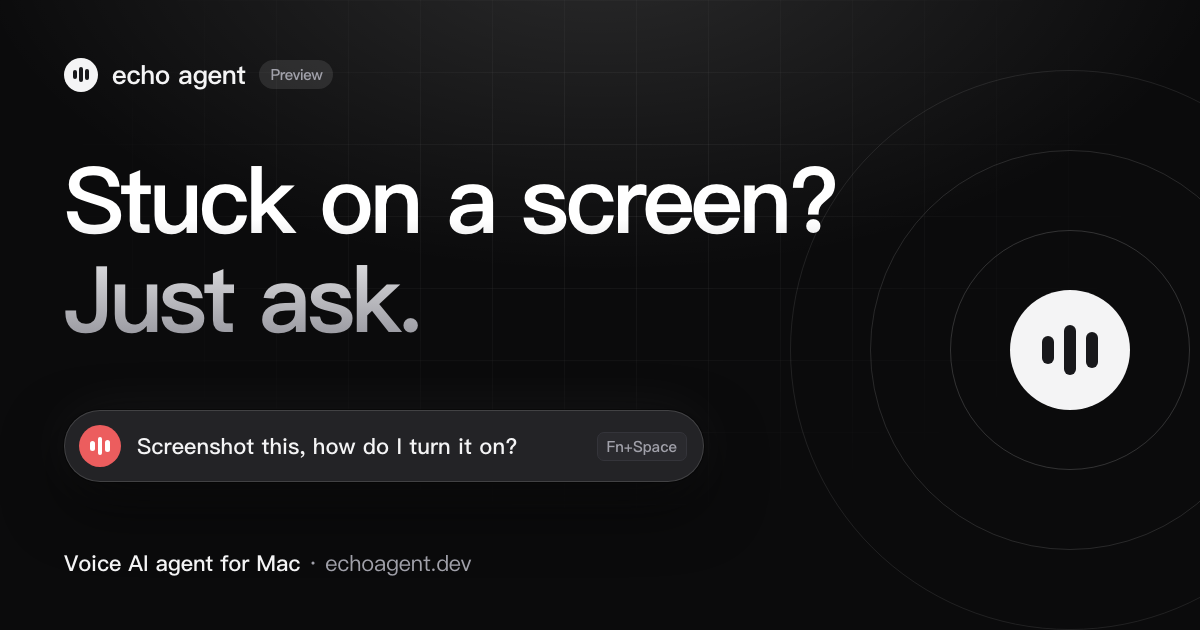
Things you can ask
- Screenshot this settings page. How do I turn on automatic updates?
- Screenshot this page and show me how to use it
- Screenshot: what is this error?
- Screenshot this and tell me what the Chinese text says
- Screenshot this error and have Codex fix it
Get started in three steps
- Install echo agent and pick a model that can see imagesSign in to use the built-in echo model for free, which can read images, or add your own API key in Settings and choose a model that supports images.
- Allow Screen Recording the first timemacOS asks once. Allow it and you're set.
- Press Fn+Space in any app and say “screenshot this…”Press Fn+Space again to submit. The answer shows up in the panel at the top of your screen, and the app you are in keeps focus.
What gets captured, and where it goes
- Only when you ask. echo agent never captures your screen unless you say so.
- One window, not the whole screen. It captures the window you were using when you pressed the shortcut.
- The image goes to the model you chose. With the built-in echo model, requests pass through our server to a model provider, and we keep usage counts, not content. With your own API key, they go straight to the provider you picked. Screenshots go through Codex or Claude Code only when you explicitly ask for that.
- Local copies are cleaned up. Screenshots are saved in a folder only your macOS account can read, and ones older than 24 hours are removed the next time you take a screenshot.
FAQ
How do I ask AI about something on my Mac screen?
With echo agent installed, press Fn+Space in any app, say “screenshot this, how do I do it?” or just ask your question, and press Fn+Space again. echo agent captures the current window and a model answers from the image, with no manual screenshot or pasting.
Does it cost anything?
echo agent is a free download. After signing in you get free daily uses of the built-in echo model; if you need more, buy a pass or add your own API key.
What permissions does it need?
Screen Recording for screenshots, Microphone to hear you, and Accessibility for the Fn+Space shortcut.
Does it work on Windows or Intel Macs?
Not yet. echo agent is Mac only and needs Apple silicon and macOS 15 or later.
Besides screenshots, echo agent hands coding tasks to Claude Code and Codex and keeps your notes in order.